Zum Inhalt springen
Inhaltsverzeichnis
Haben Sie nach dem Anschließen eines neuen Fernsehers, einer Spielkonsole oder eines Heimkinosystems schon einmal ein unscharfes Bild, fehlenden Ton oder unerwartete Fehler erlebt? Damit sind Sie nicht allein! Da 4K- und 8K-Displays immer mehr zum Standard werden, ist die Wahl des richtigen HDMI-Kabels wichtiger denn je. Erstaunlicherweise sind fast 401.030 Verbindungsprobleme auf die Verwendung inkompatibler, nicht zertifizierter oder minderwertiger Kabel zurückzuführen.
In diesem Artikel erfahren Sie mehr über die wichtigsten Standards und Steckertypen, wie branchenzertifizierte Kabel Ihre Investition schützen und welche Konformitätslabel Ihre Anlage zukunftssicher machen. Ob Sie Ihr Entertainment-System aufrüsten oder maximale Zuverlässigkeit für Ihr Unternehmen benötigen – diese Informationen helfen Ihnen, kostspielige Fehler zu vermeiden und ein optimales audiovisuelles Erlebnis zu erzielen.
Lesen Sie weiter, um Profi-Tipps für die Auswahl, Installation und Fehlerbehebung von HDMI-Kabeln zu erhalten – dem Herzstück jeder modernen Geräteverbindung.
Wichtigste Erkenntnisse
- Wählen Sie HDMI-Kabel, die zur HDMI-Version, Auflösung und zum Steckertyp Ihres Geräts passen. So erzielen Sie die beste Bild- und Tonqualität.
- Zertifizierte Kabel von vertrauenswürdigen Marken wie Cablink sind sicher und hochwertig. Sie unterstützen außerdem neue Funktionen wie 4K, 8K, HDR und Gaming-Upgrades.
- Es gibt verschiedene HDMI-Kabeltypen für unterschiedliche Anwendungen. Standardkabel eignen sich für einfache HD-Auflösung. High-Speed-Kabel sind für frühe 4K-Auflösungen geeignet. Premium-High-Speed-Kabel unterstützen 4K mit 60 Hz. Ultra-High-Speed-Kabel sind für 8K und zukünftige Anforderungen ausgelegt.
- Achten Sie auf Zertifizierungsetiketten, QR-Codes und Sicherheitskennzeichnungen wie RoHS, REACH, CL2 und CL3. Diese helfen Ihnen, gefälschte oder unsichere Kabel zu vermeiden und die Bauvorschriften einzuhalten.
- Verwenden Sie die richtige Kabellänge. Knicken Sie die Kabel nicht scharf und verlegen Sie sie nicht in der Nähe von Stromkabeln. Dadurch werden Signalverluste vermieden und eine klare Bild- und Tonübertragung gewährleistet.
- Manche HDMI-Kabel sind für spezielle Anwendungen konzipiert. Kfz-, aktive oder Glasfaser-HDMI-Kabel eignen sich für große Entfernungen oder den Einsatz im Auto.
- Beim Kabelwechsel sollten Sie ein Kabel wählen, das der HDMI-Version und Bandbreite Ihres Geräts entspricht oder diese übertrifft. Dadurch werden Bildflackern, Signalausfälle und Tonprobleme vermieden.
- Großhändler sollten gängige zertifizierte Kabel vorrätig halten. Sie sollten ihre Kunden über Kabeltypen und Sicherheitsvorkehrungen aufklären. Außerdem müssen sie sich über neue Trends informieren, um der steigenden Nachfrage gerecht zu werden.
Profi-Tipps: Lesen Sie unseren letzten Beitrag für HDMI-Kabel: Funktionen und Anwendungen um mehr zu erfahren.
HDMI-Kabelstandards
Das Verständnis der HDMI-Kabelstandards hilft Ihnen bei der Auswahl des richtigen Kabels für Ihre Bedürfnisse. Diese Standards wurden im Laufe der Zeit weiterentwickelt, um eine bessere Video- und Audioqualität zu gewährleisten. Die CTA/EIA-861-Serie legt die Regeln für die Funktionsweise von HDMI-Kabeln fest. Die technischen Verbesserungen lassen sich anhand der Signalübertragung im Kabel nachvollziehen.
TMDS-Signal | PIN-Nummer |
CLK (+) | 10 |
CLK (-) | 12 |
CLK (Shield) | 11 |
DATA0 (+) | 7 |
DATA0 (-) | 9 |
DATA0_Shield | 8 |
DATA1 (+) | 4 |
DATA1 (-) | 6 |
DATA1_Shield | 5 |
DATA2 (+) | 1 |
DATA2 (-) | 3 |
DATA2_Shield | 2 |
CEC | 13 |
HEC-Daten | 14 |
SCL (Serieller Takt für DDC) | 15 |
SDA (Serielle Datenleitung für DDC) | 16 |
DDC / CEC / HEC Erdung | 17 |
+5 V Stromversorgung (max. 50 mA) | 18 |
Hot-Plug-Erkennung (1.3) / HEC Data+ (1.4) | 19 |
Die HDMI-Kabelstandards nutzen TMDS (Transition Minimized Differential Signaling) zur Datenübertragung. Jedes Kabel verfügt über 19 Adern, darunter vier verdrillte Adernpaare für Takt- und Datenkanäle. Höhere TMDS-Taktraten ermöglichen die Übertragung größerer Datenmengen. Dies führt zu höheren Auflösungen und satteren Farben. Der EIA/CEA-861-Standard definiert die Funktionsweise von Videoformaten und Timing in Verbindung mit diesen Kabeln.
HDMI-Kabelanschlusstypen
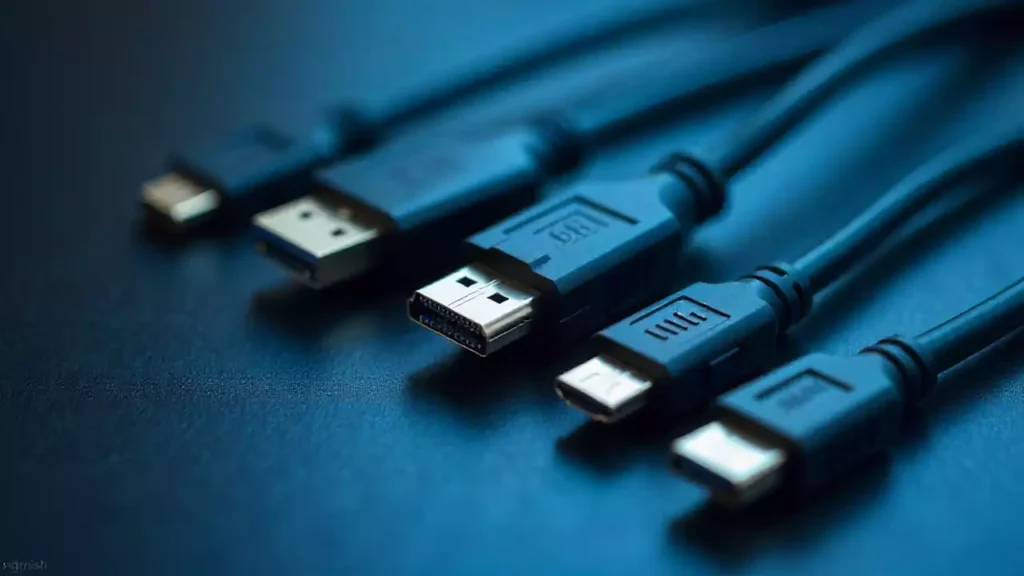
HDMI-Anschluss Typ A
HDMI-Anschluss Typ A ist der gängigste HDMI-Anschluss. Man findet ihn an den meisten Fernsehern, Monitoren, Spielekonsolen und Heimkino-Receivern. Dieser Anschluss hat 19 Pins und ist etwa 13,9 mm breit und 4,45 mm hoch. Er ist leicht zu erkennen, da er wie ein flaches, breites Rechteck aussieht.
- Wo Sie es finden:
- Fernseher
- Projektoren
- Blu-ray-Player
- Streaming-Geräte
- Spielkonsolen
HDMI-Stecker vom Typ A sind mit allen gängigen HDMI-Kabeln kompatibel. Sie werden sowohl für Video- als auch für Audiosignale verwendet. Wenn Sie einen Fernseher an eine Streaming-Box oder eine Spielekonsole anschließen, benötigen Sie wahrscheinlich einen HDMI-Stecker vom Typ A.
Tipp: Wenn Sie ein neues HDMI-Kabel für Ihren Fernseher oder Computermonitor kaufen, prüfen Sie, ob es an beiden Enden Typ-A-Stecker hat. Die meisten Heimnetzwerke verwenden diesen Steckertyp.
HDMI-Anschluss Typ B
HDMI-Anschlüsse des Typs B sind selten. Man findet sie in den meisten Haushalten und Büros nicht. Dieser Anschluss hat 29 Pins, also mehr als Typ A. Er ist etwa 21,2 mm breit und 4,45 mm hoch. Typ B wurde für sehr hochauflösende Displays entwickelt.
- Wo Sie es finden könnten:
- Frühe professionelle Videoausrüstung
- Einige spezielle medizinische oder industrielle Geräte
Typ B unterstützt Dual-Link-Verbindungen. Das bedeutet, er kann mehr Daten übertragen als Typ A. Die meisten Geräte nutzten diesen Anschluss jedoch nie. Mit dem HDMI-1.3-Update verlor Typ B an Bedeutung, da Typ A höhere Geschwindigkeiten ermöglichte.
Notiz: Sie brauchen sich wahrscheinlich keine Gedanken über Typ-B-Anschlüsse zu machen. Die meisten modernen Geräte verwenden diese nicht.
HDMI-Anschluss Typ C
Der Typ-C-Anschluss wird auch Mini-HDMI-Anschluss genannt. Er ist kleiner als Typ A, hat aber dennoch 19 Pins. Der Anschluss ist etwa 10,42 mm breit und 2,42 mm hoch. Typ-C-Anschlüsse findet man an kleineren Geräten, die Platz sparen müssen.
- Wo Sie es finden:
- Digitalkameras
- Camcorder
- Einige Tabletten
- Tragbare Mediaplayer
Mit USB-C-Anschlüssen lassen sich kleine Geräte an Fernseher oder Monitore anschließen. Häufig verwendet man ein Kabel mit einem USB-C-Anschluss an einem Ende und einem USB-A-Anschluss am anderen. So können Sie Fotos oder Videos von Ihrer Kamera auf einem großen Bildschirm anzeigen.
Tipp: Wenn Sie Ihre Kamera an einen Fernseher anschließen möchten, benötigen Sie ein Mini-HDMI-Kabel (Typ C) auf Standard-HDMI-Kabel (Typ A). Prüfen Sie immer in der Bedienungsanleitung Ihres Geräts, welchen Anschluss es verwendet.
HDMI-Anschluss Typ D
HDMI-Anschlüsse vom Typ D werden auch Micro-HDMI-Anschlüsse genannt. Man findet sie an sehr kleinen Geräten. Typ D ist sogar noch kleiner als Typ C (Mini-HDMI). Er hat zwar wie Typ A und Typ C ebenfalls 19 Pins, ist aber deutlich kompakter.
Besonderheit | Detail |
Pin-Anzahl | 19 |
Größe | 6,4 mm × 2,8 mm |
Hauptverwendung | Kleine tragbare Elektronik |
Kompatibilität | Funktioniert mit Standard-HDMI |
Typ-D-Anschlüsse finden sich an Geräten, die möglichst viel Platz benötigen. Dazu gehören:
- Smartphones
- Tabletten
- Action-Kameras (wie GoPro)
- Einige Digitalkameras
Ein Micro-HDMI-Kabel verwendet man, um ein kleines Gerät an einen größeren Bildschirm anzuschließen. Beispielsweise kann man so Fotos von einer Action-Kamera auf dem Fernseher anzeigen. Man benötigt lediglich ein Kabel mit einem Typ-D-Stecker an einem Ende und einem Typ-A-Stecker am anderen.
Tipp: Prüfen Sie vor dem Kauf eines Kabels immer den Anschluss Ihres Geräts. Typ D sieht anders aus als Mini-HDMI (Typ C) und Standard-HDMI (Typ A). Wenn Sie versuchen, das falsche Kabel anzuschließen, könnten Sie den Anschluss beschädigen.
Typ-D-Anschlüsse tragen zu schlanken und leichten Geräten bei. Sie müssen keine Einbußen bei der Video- oder Audioqualität hinnehmen. Das Kabel überträgt weiterhin hochauflösende Signale, genau wie die größeren Anschlüsse.
Warum HDMI Typ D wählen?
- Sie möchten ein kleines Gerät an einen Fernseher oder Monitor anschließen.
- Sie benötigen ein leichtes und tragbares Kabel.
- Sie möchten Ihren Arbeitsplatz ordentlich und aufgeräumt halten.
Einige Tablets und Smartphones nutzen den Typ-D-Anschluss für Präsentationen oder zum Ansehen von Filmen auf einem großen Bildschirm. So genießen Sie HD-Video und -Ton ohne zusätzliche Adapter.
Notiz: Nicht jedes Smartphone oder Tablet verfügt über einen Micro-HDMI-Anschluss. Viele neuere Geräte nutzen USB-C oder drahtlose Verbindungen. Prüfen Sie daher immer in der Bedienungsanleitung Ihres Geräts, ob es Micro-HDMI unterstützt.
HDMI-D-Anschlüsse bieten Ihnen Flexibilität. Sie können Ihre Inhalte jederzeit und überall teilen. Ob auf Reisen oder bei der Verwendung mobiler Geräte – mit HDMI-D-Kabeln ist das Anschließen und Anzeigen Ihrer Medien ganz einfach.
HDMI-Kabel-Code-Konformität
Obligatorische Zertifizierungsschritte
HDMI-Kabel müssen vor dem Verkauf strenge Tests durchlaufen. Diese Tests gewährleisten die Sicherheit und einwandfreie Funktion der Kabel. Der erste Schritt ist die Prüfung in spezialisierten HDMI-Testzentren. Experten überprüfen, ob die Kabel den neuesten HDMI-Richtlinien entsprechen. Dabei achten sie unter anderem auf Signalqualität und -geschwindigkeit. Außerdem testen sie auf elektromagnetische Störungen (EMI). EMI-Tests stellen sicher, dass das Kabel keine WLAN- oder andere drahtlose Signale beeinträchtigt.
Hersteller müssen zertifizierte Kabel mit speziellen Etiketten versehen. Jedes Kabel erhält ein Etikett oder einen QR-Code. Dieser bestätigt, dass das Kabel alle Tests bestanden hat. Durch Scannen des QR-Codes können Sie die Echtheit des Kabels überprüfen. Diese Etiketten helfen Ihnen, gefälschte oder minderwertige Kabel zu vermeiden.
Es gelten auch rechtliche Bestimmungen. Unternehmen müssen für die Nutzung des HDMI-Logos und der HDMI-Technologie bezahlen. Werden diese Schritte missachtet, drohen ihnen Konsequenzen und der Verlust der Verkaufserlaubnis für HDMI-Kabel. Die Regeln ändern sich mit der Einführung neuer Standards wie HDMI 2.1 oder Ultra96. Unternehmen müssen ihre Kabel aktualisieren und neuen Tests unterziehen.
Tipp: Achten Sie immer auf Zertifizierungssiegel und QR-Codes auf der Verpackung. Das hilft Ihnen, sichere und gute Kabel auszuwählen.
Zertifizierung
Die Zertifizierung ist mehr als nur ein einzelner Test. Sie müssen sich darauf verlassen können, dass Ihr Kabel jederzeit funktioniert. Qualitätskontrollen finden während und nach der Kabelherstellung statt. Spezielle Testgeräte suchen nach Problemen, die zunächst übersehen werden könnten. So werden Fehler frühzeitig erkannt und die Kabelqualität sichergestellt.
Zertifizierte Kabel müssen bestimmte Anforderungen an Geschwindigkeit, Signalstärke und Sicherheit erfüllen. Beispielsweise müssen Ultra-High-Speed-HDMI-Kabel EMV-Tests bestehen. Dadurch wird sichergestellt, dass Ihr Kabel Ihre drahtlosen Geräte nicht beeinträchtigt. Die Zertifizierung prüft außerdem, ob das Kabel hohe Auflösungen und schnelle Bildwiederholraten unterstützt.
Sie sollten Kabel von Marken kaufen, die diese Regeln einhalten. Marken wie Cablink stellen sicher, dass ihre Kabel alle Tests bestehen und die entsprechenden Kennzeichnungen tragen. Das sorgt für bessere Leistung und mehr Sicherheit.
HDCP
HDCP steht für High-bandwidth Digital Content Protection (Schutz digitaler Inhalte mit hoher Bandbreite). Sie benötigen HDCP, um geschützte Filme oder Sportübertragungen auf Ihren Geräten anzusehen. HDCP verhindert das Kopieren von Video- und Audiodaten während der Übertragung über HDMI-Kabel.
Bei Verwendung eines HDMI-Kabels müssen sowohl Ihr Abspielgerät als auch Ihr Fernseher HDCP unterstützen. Andernfalls kann es zu einem schwarzen Bildschirm oder einer Fehlermeldung kommen. Die meisten neuen HDMI-Kabel und -Geräte unterstützen HDCP, dennoch sollten Sie dies vor dem Kauf überprüfen.
Notiz: Wenn Sie 4K- oder 8K-Inhalte streamen möchten, stellen Sie sicher, dass Ihr Kabel und Ihre Geräte die neueste HDCP-Version unterstützen. So vermeiden Sie Probleme und schützen Ihre Inhalte.
RoHS & REACH
RoHS und REACH sind zwei wichtige Richtlinien, die Ihre Sicherheit und die der Umwelt gewährleisten. Beim Kauf von HDMI-Kabeln sollten Sie deren Bedeutung kennen.
RoHS RoHS steht für “Restriction of Hazardous Substances” (Beschränkung gefährlicher Stoffe). Diese Regel besagt, dass Unternehmen bestimmte gefährliche Materialien in Elektronikgeräten nicht verwenden dürfen. RoHS beschränkt beispielsweise die Verwendung von Blei, Quecksilber, Cadmium und anderen schädlichen Chemikalien. Ein RoHS-konformes Kabel ist sicherer für Sie und besser für die Umwelt.
ERREICHEN REACH steht für “Registrierung, Bewertung, Zulassung und Beschränkung chemischer Stoffe”. Diese Regelung stammt aus der Europäischen Union. Sie verpflichtet Unternehmen, die in ihren Produkten verwendeten Chemikalien zu überprüfen und zu kontrollieren. REACH trägt zum Schutz Ihrer Gesundheit und der Umwelt bei, indem sichergestellt wird, dass Produkte keine gesundheitsschädlichen Chemikalien enthalten.
Achten Sie beim Kauf von HDMI-Kabeln auf die RoHS- und REACH-Kennzeichnung auf der Verpackung. Diese Kennzeichnungen bestätigen, dass das Kabel strenge Sicherheitsbestimmungen erfüllt.
Tipp: Wenn Sie auf der Verpackung “RoHS-konform” oder “REACH-konform” sehen, wissen Sie, dass das Kabel sicherer in der Anwendung und besser für das Recycling geeignet ist.
Hier ist eine kurze Tabelle, die Ihnen beim Merken hilft:
Einhaltung | Was es bedeutet | Warum das wichtig ist |
RoHS | Keine gefährlichen Metalle oder Chemikalien | Sicherer für Sie und den Planeten |
ERREICHEN | Kontrolliert alle Chemikalien in den Produkten | Schützt Gesundheit und Umwelt |
Marken wie Cablink stellen sicher, dass ihre HDMI-Kabel den RoHS- und REACH-Richtlinien entsprechen. Das bedeutet, dass Sie diese Kabel bedenkenlos zu Hause, in der Schule oder im Büro verwenden können.
CL2 & CL3
CL2 and CL3 are special safety ratings for HDMI cables. You need to know about these if you plan to run cables inside your walls.
CL2 means “Class 2.” A CL2 cable can handle up to 150 volts. It has a special jacket that stops fire from spreading. You can use CL2 cables for most in-wall setups in homes.
CL3 means “Class 3.” A CL3 cable can handle up to 300 volts. It has even stronger fire protection. You should use CL3 cables for bigger jobs, like in-wall wiring in offices or commercial buildings.
If you want to hide your HDMI cables in the wall, always pick cables with a CL2 or CL3 rating. This keeps your home safer and follows building codes.
Notiz: Never use regular HDMI cables inside walls. They do not have the right fire protection.
Here is a simple checklist for in-wall HDMI cables:
- Look for “CL2” or “CL3” on the cable or box.
- Check your local building codes.
- Choose cables from trusted brands like Cablink.
You keep your setup safe and legal when you use the right cable. Always check for these ratings before you start your installation.
Choosing the Right HDMI Cable – 5 Tips
Device Needs
You should always start by looking at your devices before picking an HDMI cable. Each device has its own HDMI version and connector type. For example, a gaming console may use a different HDMI port than a camera or a laptop. Check your device’s manual or the label near the HDMI port. This helps you find out which HDMI version and connector you need.
Here is a simple checklist to guide you:
- Identify your devices. Write down the make and model of your source (like a Blu-ray player or game console) and your display (like a TV or monitor).
- Check the HDMI version. Look for the HDMI version number on your device or in the manual.
- Find the connector type. Devices use different HDMI connectors, such as Type A (standard), Type C (mini), or Type D (micro).
- Match the cable to your device. Make sure the cable you choose fits both the HDMI version and connector type.
Tipp: Using a cable that matches your device’s HDMI version and connector type helps you avoid signal loss and connection problems.
You can also use this table to match cable classes to your needs:
HDMI Cable Class | Maximum Resolution & Refresh Rate | Bandwidth (Gbps) | Typical Use Cases |
Standard HDMI | Up to 1080i | Up to 5 | Legacy devices, basic HD content |
High-Speed HDMI | Up to 4K at 30Hz | Up to 10 | Older 4K devices, 3D content |
Premium High-Speed HDMI | 4K/Ultra HD at 60Hz | 18 | Modern 4K TVs and devices |
Ultra-High-Speed HDMI | 8K and higher refresh rates | Up to 48 | Latest 8K displays, gaming, future-proof |
Resolution
Resolution tells you how sharp and clear your picture will look. You need to know the highest resolution your devices support. For example, some TVs show 1080p, while others support 4K or even 8K. If you use a cable that cannot handle your device’s resolution, you might see a blurry picture or no signal at all.
Here are some common resolutions and what they mean for your cable choice:
- 1080p (Full HD):Most Standard or High-Speed HDMI cables work well.
- 4K (Ultra HD):You need at least a High-Speed HDMI cable for 4K at 30Hz. For 4K at 60Hz, use a Premium High-Speed HDMI cable.
- 8K:Only Ultra High Speed HDMI cables support 8K resolution and advanced features.
Some professional uses, like medical imaging or scientific displays, need even higher resolutions. HDMI 2.1 cables can support up to 10K at 30Hz. This is important for showing fine details in images, such as tissues or cells.
Notiz: Always check your device’s manual for the highest supported resolution. Pick a cable that matches or exceeds this resolution.
Bandbreite
Bandwidth is the amount of data your HDMI cable can carry every second. Higher resolutions and faster refresh rates need more bandwidth. If your cable does not have enough bandwidth, you may see flickering, lag, or no picture.
Look at this table to see how much bandwidth you need for different resolutions and refresh rates (at 8-bit color depth):
Resolution | 24 Hz (Gbps) | 60 Hz (Gbps) | 120 Hz (Gbps) | 144 Hz (Gbps) |
720p | 0.66 | 1.66 | 3.32 | 3.98 |
1080p | 1.49 | 3.73 | 7.46 | 8.96 |
1440p | 2.65 | 6.64 | 13.27 | 15.93 |
4K UHD | 5.97 | 14.93 | 29.86 | 35.83 |
If you want to play games at 4K and 120Hz, you need a cable that supports at least 29.86 Gbps. Ultra High Speed HDMI cables offer up to 48 Gbps, which is enough for 8K video and high refresh rates. This extra bandwidth also helps with features like Variable Refresh Rate (VRR) and enhanced audio.
Tipp: Always choose a cable with bandwidth that matches or exceeds your device’s needs. This helps you get the best picture and sound.
When you follow HDMI Cable Standards, you make sure your cable supports the right bandwidth for your setup. Certified cables from trusted brands, like Cablink, help you avoid problems and get reliable performance.
Compliance Check
You must check if your HDMI cable meets all safety and quality rules before you use it. This step helps you avoid problems with your devices and keeps your setup safe. Many cables look the same, but not all follow the right standards. You should always look for proof that your cable is certified.
How to check for compliance:
- Look for Certification Labels:
Find labels like “Premium Certified” or “Ultra High Speed” on the box. These labels show that the cable passed strict tests. Some cables have a QR code you can scan with your phone. This code tells you if the cable is real and certified. - Check for Safety Marks:
Look for marks like RoHS, REACH, CL2, or CL3. These marks mean the cable is safe for you and the environment. If you want to run cables inside your walls, you must see CL2 or CL3 on the cable. - Read the Packaging:
The box should list the HDMI version, supported resolution, and bandwidth. Make sure these match your device’s needs. - Buy from Trusted Brands:
Brands like Cablink follow HDMI Cable Standards. You can trust their cables to work well and stay safe.
Tipp: Never use cables without clear labels or marks. These cables may not meet safety rules and could cause problems.
A quick table can help you remember what to check:
What to Check | Warum das wichtig ist |
Zertifizierungslabel | Proves cable passed all tests |
Safety Marks | Shows cable is safe to use |
HDMI Version | Matches your device’s needs |
Trusted Brand | Ensures quality and support |
You protect your devices and your home when you follow these steps. HDMI Cable Standards help you pick the right cable every time.
Installation
You must think about where and how you will install your HDMI cable. The right installation keeps your setup safe and helps your cable last longer. You should plan your cable path before you start.
5 Steps for a safe and easy installation:
- Measure the Distance:
Measure the space between your devices. Buy a cable that is a little longer than you need. This helps you avoid pulling or bending the cable too much. - Avoid Sharp Bends:
Do not bend the cable sharply. Gentle curves keep the signal strong and stop damage. - Keep Away from Power Cables:
Place your HDMI cable away from power cords. This stops signal loss and keeps your picture clear. - Use Wall-Rated Cables for In-Wall Runs:
If you want to hide cables in the wall, use cables marked CL2 or CL3. These cables have jackets that stop fire from spreading. - Label Both Ends:
Put a small label on each end of the cable. This helps you know which cable goes where, especially if you have many cables.
Notiz: If you need a long cable, think about using an active HDMI cable or a fiber optic HDMI cable. These cables keep the signal strong over long distances.
You should always follow the rules for your building or home. If you are not sure, ask a professional for help. Good planning and the right cable make your setup work better and last longer.
Troubleshooting
Compatibility Issues
Sometimes, your devices do not work well together. This happens when the HDMI cable or device uses a different HDMI version. For example, you might use a new gaming console with an old TV. The TV may not have new features like 4K at 120Hz or HDR. You only get the features that both your cable and device can use.
4 Ways to fix compatibility problems:
- Look at the HDMI version on both devices.
- Pick a cable that matches the highest version your devices use.
- Update your device’s software if you can.
- Try another HDMI port on your TV or monitor.
Tipp: Always check your device manuals. They tell you which HDMI versions and features your devices have.
If you see a blank screen or error, your devices may not connect right. You might need to change the display settings on your device. Set the output resolution to match your TV or monitor.
Signal Loss
Signal loss can make your picture look fuzzy, flicker, or disappear. This can happen if the cable is too long, not good quality, or near other electronics. Bending the cable too much or damage can also cause signal loss.
Why signal loss happens:
- Cable is longer than 15 feet for standard cables.
- Cable is not certified for high speeds.
- Cable is close to power cords or wireless devices.
- Cable has sharp bends or is damaged.
How to stop signal loss:
- Use a shorter cable if you can.
- Pick a certified High-Speed or Ultra High Speed HDMI cable.
- Keep HDMI cables away from power lines and wireless routers.
- Replace any cable that looks worn out or broken.
Notiz: For long cable runs, use active HDMI cables or fiber optic HDMI cables. These keep the signal strong over longer distances.
Counterfeit Cables
Fake HDMI cables may look real but do not meet safety or quality rules. Counterfeit cables might not support the features you need. They can even damage your devices or cause fire risks.
How to tell if a cable is fake:
Real Cable Features | Counterfeit Cable Signs |
Certification labels/QR code | No labels or fake stickers |
Trusted brand name | Misspelled or unknown brands |
Clear specs on packaging | Missing or vague information |
What you should do:
- Buy from trusted brands like Cablink.
- Scan the QR code on the box to check if it is certified.
- Stay away from deals that seem too cheap.
Alert: Using fake cables can cause bad performance and safety problems. Always check for certification before you buy.
Replacement
Sometimes, you need to replace your HDMI cable to keep your devices working well. Old or damaged cables can cause problems like flickering screens, no signal, or poor sound. You might also need a new cable if you upgrade your TV, gaming console, or other devices.
How do you know when to replace your HDMI cable?
Look for these signs:
- The picture cuts in and out.
- You see strange colors or lines on the screen.
- The sound drops or crackles.
- Devices do not recognize each other.
- The cable feels loose or the connectors look bent.
- You upgraded to a device that needs a higher HDMI version.
Tipp: If you see any of these problems, try another HDMI cable. If the problem goes away, your old cable needs replacing.
5 Steps to Replace Your HDMI Cable
- Unplug the Old Cable:
Turn off your devices. Gently unplug the HDMI cable from both ends. Do not pull on the cable itself. Hold the connector to avoid damage. - Check the Ports:
Look at the HDMI ports on your devices. Make sure there is no dust or damage. Clean gently if needed. - Choose the Right Replacement:
Pick a cable that matches your device’s HDMI version and connector type. For example, use an Ultra High Speed HDMI cable for 8K TVs or gaming consoles. Check for certification labels like “Premium Certified” or “Ultra High Speed.” - Install the New Cable:
Plug the new cable into your devices. Make sure the connectors fit snugly. Turn on your devices and check the picture and sound. - Test the Connection:
Play a video or game to see if everything works. If you still have problems, check your device settings or try another cable.
Problem | Possible Cause | Lösung |
Flickering screen | Damaged cable | Replace with new cable |
No signal | Loose connection | Reconnect or replace |
Poor sound | Old or low-quality | Use certified cable |
Upgraded device | Outdated cable | Buy higher version cable |
Notiz: Always buy HDMI cables from trusted brands like Cablink. Certified cables give you better performance and safety.
You should not wait for your cable to fail completely. Replacing an old or low-quality HDMI cable can fix many problems right away. It also helps you enjoy the best picture and sound from your devices. If you plan to upgrade your home theater or gaming setup, get a cable that supports the latest standards. This way, you stay ready for new technology and features.
For HDMI Cable Wholesalers & Distributors Tips
Purchasing Checklist
You need a simple plan when buying HDMI cables for your business. A good checklist helps you avoid mistakes and keeps customers happy. Studies show that using steps like these helps you control your stock and save money. Here is an easy 8-step checklist you can follow:
- Write down all HDMI cable types and accessories you want to track.
- Pick an inventory system that matches your business size.
- Put labels on each item and record your starting stock.
- Keep track of how often you sell or use each cable.
- Work with your suppliers to keep your supply chain strong.
- Set reorder points so you do not run out of stock.
- Check your stock often to find mistakes or missing items.
- Teach your staff to follow the same process every time.
This checklist helps you control your stock better and plan for what you need. You can see what your customers buy most and always have the right cables ready.
Tip: Brands like Cablink have many certified cables, so you can meet different customer needs easily.
Stocking
Good stocking helps your business run well. You do not want too many cables or to run out of popular ones. Use your sales numbers to see which HDMI cables sell the fastest. Keep more of the best-sellers, like Ultra High Speed and Premium High-Speed cables, because more people want 4K and 8K devices now.
The HDMI cable market is growing fast. Experts think it will reach about USD 4.47 billion by 2031. This is because more people are buying high-definition TVs, gaming consoles, and smart devices. If you manage your stock well, you can make the most of this growth.
You should also keep some special purpose cables, like automotive or fiber optic HDMI, for customers who need them. Check your stock often and order more of what sells best.
Note: Always look for certification labels and compliance marks before adding new stock. This helps you avoid bad or fake products.
Customer Education
Your customers count on you for help. You can teach them how to pick the right HDMI cable by showing them cable types, connector sizes, and safety ratings. Simple guides or charts in your store help customers understand their choices.
You can explain the difference between Standard, High-Speed, Premium High-Speed, and Ultra High Speed cables. Show them how to find certification labels and why these matter for safety and performance. Remind them to look for things like CL2 or CL3 if they want to put cables in the wall.
Tip: Use real examples and let customers try different cables. This helps them trust you and make better choices.
When you teach your customers, you get fewer returns and happier buyers. You also make your business a trusted place for quality HDMI cables.
Authenticity
You need to make sure every HDMI cable you sell is real. Fake cables can cause trouble for your customers. They might not work right or could break devices. You can spot real cables by looking for certification labels and QR codes on the box. These labels mean the cable passed hard tests.
Always buy from trusted suppliers. Brands like Cablink give proof that their products are real. You can scan the QR code on the box to check if the cable is certified. This step helps you stay away from fake products.
Here are some ways to check if a cable is real:
- Look for certification labels and QR codes.
- Buy only from official sellers.
- Compare the box and logo with real product pictures.
- Teach your workers how to find fake cables.
Tipp: If a price looks too low, it is probably a fake. Stick with brands and sellers you trust.
Industry Updates
You need to keep up with changes in the HDMI cable world. New rules and features come out often. These changes can change what your customers want. You should read news from the HDMI Licensing Administrator and other groups.
You can join trade groups or sign up for newsletters. Many brands, like Cablink, share news about new products and rules. You should also go to trade shows or watch webinars. These events help you learn about new trends and tech.
Easy ways to stay updated:
- Read news about the industry every week.
- Join online groups for sellers and buyers.
- Sign up for news from brands you trust.
Notiz: Staying up to date helps you answer questions and keep your stock ready.
Hot Topics & Future Trends
8K and Beyond
More devices now support 8K resolution each year. Customers want cables that work with these high resolutions. Ultra High Speed HDMI cables can do this job. You should keep cables that support 8K and higher to stay ahead.
HDMI 2.2 & Ultra96 Launch
New rules like HDMI 2.2 and Ultra96 bring better speed and new features. You need to know about these changes. They help you pick the best products for your customers. Look for cables that follow the newest rules.
Gaming Features
Gamers want smooth pictures and fast action. Features like Variable Refresh Rate (VRR) and Auto Low Latency Mode (ALLM) matter a lot. You should have cables that support these gaming features.
eARC and Home Audio
Enhanced Audio Return Channel (eARC) gives better sound. Many home theaters now use eARC. You should keep cables that work with eARC for customers who want great sound.
Competing Technologies
Other types of connections, like DisplayPort and USB-C, compete with HDMI. You should know how they are different. This helps you guide customers to the best choice for their needs.
Sustainability & Compliance
Customers care about the planet. They want cables that follow safety and green rules. Look for products that are RoHS and REACH compliant. Brands like Cablink care about the environment and follow the rules.
Tipp: Tell your customers about safe and eco-friendly products. This helps them trust you and come back.
Abschluss
Choosing the right HDMI cable isn’t just about connecting devices—it’s about ensuring crystal-clear visuals, reliable performance, and lasting peace of mind. By understanding HDMI standards, connector types, and compliance codes, you’re now equipped to select high-quality cables and avoid common compatibility issues.
Whether you’re setting up a cutting-edge home theater or upgrading your workspace, making informed choices gives you confidence and protects your investment. At HDMIUSBCable.com, we’re proud to offer a carefully curated selection of certified HDMI cables designed for 4K/8K performance and long-term reliability. Ready to experience seamless connections? Explore our product range or reach out for expert advice tailored to your needs.
Your next upgrade starts here – let’s make every connection count.
Häufig gestellte Fragen
Welches HDMI-Kabel benötige ich für 4K- oder 8K-Fernseher?
Für 4K bei 60 Hz benötigen Sie ein Premium High-Speed HDMI-Kabel. Für 8K oder 4K bei 120 Hz verwenden Sie ein Ultra High Speed HDMI-Kabel. Das passende Kabel finden Sie immer im Handbuch Ihres Fernsehers.
Wie kann ich feststellen, ob mein HDMI-Kabel zertifiziert ist?
Achten Sie auf Zertifizierungsetiketten oder einen QR-Code auf der Verpackung. Scannen Sie den QR-Code mit Ihrem Telefon, um zu überprüfen, ob das Kabel echt ist. Vertrauenswürdige Marken wie Cablink bieten diese Kennzeichnungen immer an.
Kann ich ein altes HDMI-Kabel mit neuen Geräten verwenden?
Ja, Sie können ältere Kabel verwenden, erhalten aber nur die Funktionen, die sowohl Ihr Kabel als auch Ihr Gerät unterstützen. Beispielsweise kann ein altes Kabel möglicherweise keine 4K- oder 8K-Videos wiedergeben.
Was ist der Unterschied zwischen Standard-, High-Speed- und Ultra-High-Speed-HDMI-Kabeln?
Kabeltyp | Max Resolution | Hauptverwendung |
Standard | 1080i/720p | Older TVs |
High-Speed | 4K at 30Hz | HD, frühes 4K |
Ultrahohe Geschwindigkeit | 8K/4K bei 120 Hz | Neueste Geräte |
Benötige ich für die Unterputzmontage ein spezielles HDMI-Kabel?
Ja. Verwenden Sie für die Installation in der Wand Kabel mit der Kennzeichnung CL2 oder CL3. Diese Kabel verfügen über einen Mantel, der Feuer verhindert. Beachten Sie vor der Installation immer die örtlichen Bauvorschriften.
Warum verliert mein HDMI-Kabel manchmal das Signal?
Signalverluste können auftreten, wenn das Kabel zu lang, beschädigt oder nicht für hohe Übertragungsgeschwindigkeiten zertifiziert ist. Verwenden Sie ein kürzeres oder zertifiziertes Kabel. Halten Sie HDMI-Kabel von Stromkabeln fern, um Störungen zu vermeiden.
Sind teure HDMI-Kabel besser als günstige?
Nicht immer. Zertifizierte Kabel von vertrauenswürdigen Marken funktionieren genauso gut wie teure. Achten Sie eher auf die Zertifizierung, die unterstützten Funktionen und den Markenruf als auf den Preis.
Wie kann ich den Kauf gefälschter HDMI-Kabel vermeiden?
Kaufen Sie bei vertrauenswürdigen Händlern und Marken wie Cablink.
Achten Sie auf Zertifizierungsetiketten und QR-Codes.
Meiden Sie Angebote, die zu gut klingen, um wahr zu sein.
Wie kann ich die Qualität von HDMI-Kabeln verschiedener Lieferanten überprüfen?
Um sicherzustellen, dass die Produkte den Leistungs- und Sicherheitsstandards entsprechen, sollten Sie offizielle Zertifizierungen (z. B. von HDMI.org), Prüfberichte von Drittlaboren und Musterbewertungen anfordern.
Welche HDMI-Kabeltypen gibt es hauptsächlich und wie wähle ich das richtige aus?
Wählen Sie je nach benötigter Bandbreite, Auflösung (4K/8K) und Anwendungslänge zwischen Standard-, High-Speed- und Ultra-High-Speed-HDMI-Kabeln.
Wann sollte ich Glasfaser-HDMI-Kabel in Betracht ziehen?
Bei Installationen über 15 Meter oder bei Problemen mit elektromagnetischen Störungen bieten Glasfaser-HDMI-Kabel eine überlegene Signalzuverlässigkeit und -klarheit.
Wie kann ich gefälschte oder minderwertige HDMI-Kabel vermeiden?
Prüfen Sie die Referenzen des Lieferanten, achten Sie auf Zertifizierungszeichen, kontrollieren Sie die fälschungssichere Verpackung und testen Sie Funktionsmuster vor dem Kauf größerer Mengen.
Welche technischen Spezifikationen sind beim Großhandel mit HDMI-Kabeln am wichtigsten?
Fokus auf Bandbreitenbewertung, Leitermaterial (Kupfer oder Glasfaser), Schirmungsdesign, Steckertyp und Kompatibilität mit HDCP/CEC-Protokollen.
Wie unterscheidet sich die Kabelauswahl für private, gewerbliche und industrielle Anwendungen?
Bei Heiminstallationen stehen hohe Auflösung und AV-Synchronisierung im Vordergrund, während kommerzielle Projekte längere Kabelstrecken und hohe Zuverlässigkeit erfordern. Die Kabelspezifikationen sollten den jeweiligen Umgebungsbedingungen angepasst werden.
Warum ist Supply-Chain-Management für Großhändler wichtig?
Eine effiziente Bestandsplanung, Logistik und flexible Liefermöglichkeiten tragen dazu bei, Kosten zu senken, Lieferzeiten zu verkürzen und die Kundenzufriedenheit zu steigern.
Welche kundenspezifischen OEM/ODM-Dienstleistungen werden angeboten?
Großhandelspartner erhalten Zugang zu maßgeschneiderten Kabellängen, Mantelvarianten, Steckerbeschriftungen und Verpackungen, die auf spezifische Markt- oder Markenbedürfnisse zugeschnitten sind.
Welche Art von Kundendienst können Großhändler erwarten?
Solide Garantiebedingungen, technischer Support und schneller Produktaustausch reduzieren Risiken und stärken das Kundenvertrauen.
Welche neuen Trends zeichnen sich in der HDMI-Kabeltechnologie ab?
Bleiben Sie über HDMI 2.2, 96 Gbit/s, 16K-Video und fortschrittliche Funktionen wie LIP (Latency Indication Protocol) informiert – so sind Sie für zukünftige Upgrades und sich ändernde Anforderungen bestens gerüstet.